Adding Plausible to WordPress
The best way to add Plausible to your WordPress site is our official plugin. It gives you a Plausible configuration page directly in your WordPress dashboard, with one-click options for goal tracking, ecommerce revenue, the proxy and more. No code required.
This page covers everything the plugin can do. If you only want a quick start, the first two sections (install and connect) are all you need.
Get privacy-friendly analytics for your WordPress site with our official plugin. Try Plausible free for 30 days, no credit card required.
Install the plugin
You need a Plausible account before the plugin can send data. Register your account and add your website first. Enter your domain without https or www, so https://www.yourdomain.com becomes yourdomain.com.
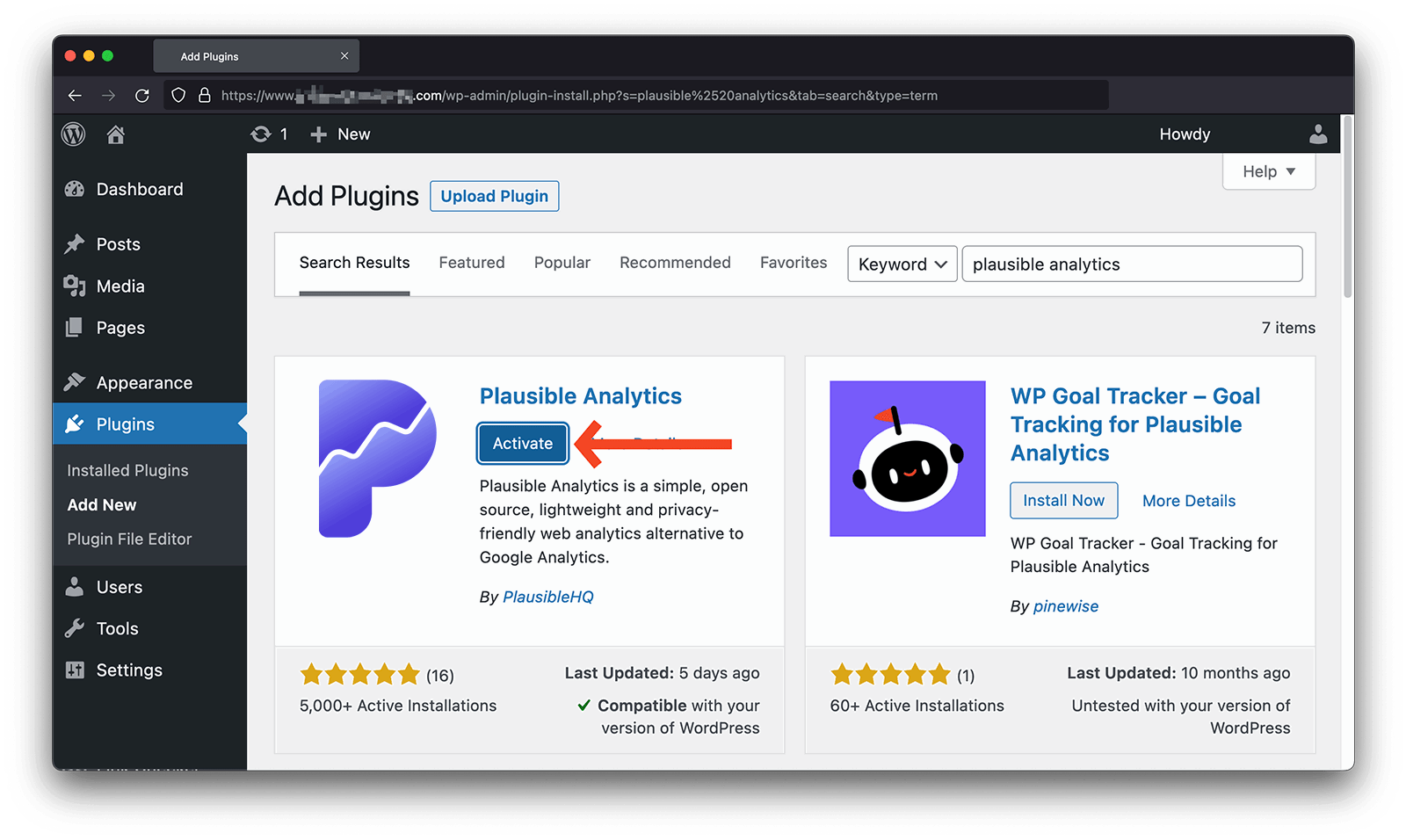
Then install the plugin from your WordPress dashboard:
- Go to the Plugins section in the left-hand navigation.
- Click Add Plugin and search for "Plausible Analytics".
- Open the official listing, then Install and Activate.
You can also install it from the official plugin directory. After activation, the plugin walks you through a Get Started guide. Every option there is also available later in the plugin settings screen, described below.
Connect with a plugin token
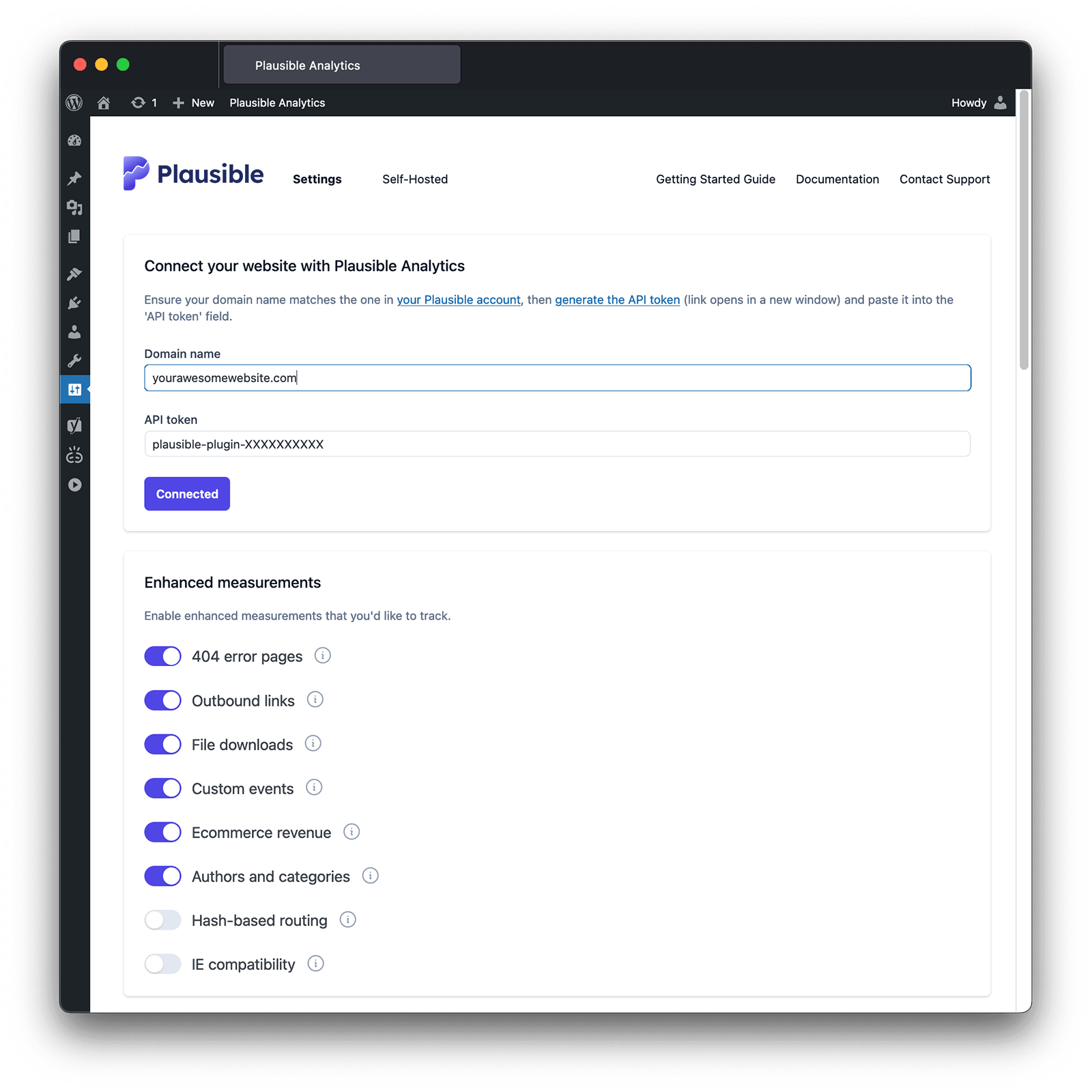
In the Domain Name field, enter your domain exactly as added to your Plausible account (no https or www).
To manage everything from WordPress without visiting your Plausible account, generate a plugin token:
- Click the token link in the plugin settings. It takes you to plausible.io.
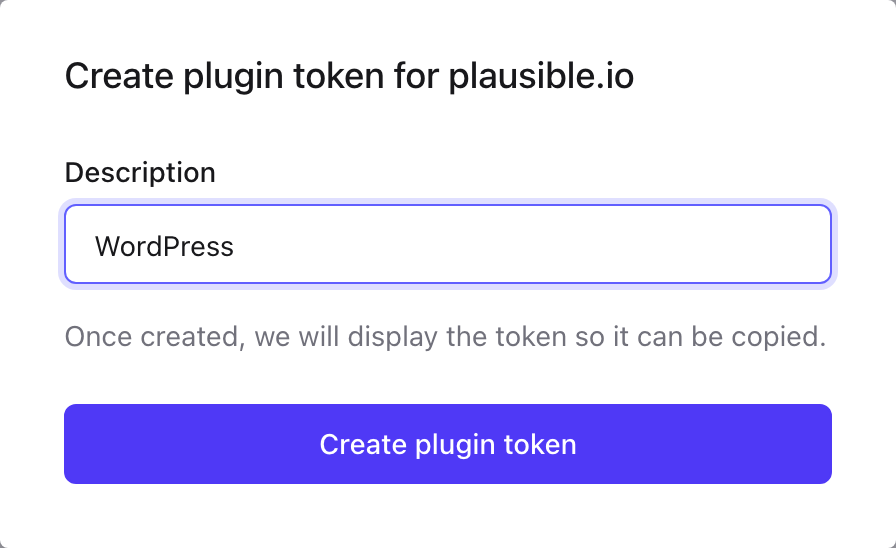
- Enter a description such as
WordPress, if it isn't already filled in, and click Create plugin token. - Copy the token displayed on the next screen. It won't be shown again after you close the modal.
- Back in the plugin, paste it into the Plugin Token field and click Connect.
If clicking the link in step 1 does nothing, see token link doesn't do anything to create the token manually.
Your site is now being tracked. You can confirm tracking from your site settings at any time.
Plugin tokens are site-specific and always start with plausible-plugin-. Make sure the token was created for the exact site you are connecting, and generate a new one if in doubt.
Your plugin tokens for a site are listed under Site Settings > Integrations > Plugin tokens, with when each was last used. To revoke one, click the delete icon next to it. Creating a new token doesn't revoke the older ones, so revoke any you no longer use.
WordPress multisite networks
You can track a WordPress multisite network in one Plausible dashboard. Install the plugin once through Network Admin → Plugins, then either Network Activate it or activate it individually on the sites you want to track.
To send traffic from those sites to one dashboard:
- Add your network's main domain as a site in Plausible, for example
example.com. - Open the Plausible plugin settings in each WordPress site's dashboard.
- Enter the same main domain in Domain Name on every site, exactly as added to Plausible. For example, use
example.comfor bothblog.example.comandexample.com/shop/. - Connect each site with a plugin token created for that same Plausible site.
- Visit each site while logged out of WordPress and check that its traffic appears in your Plausible dashboard.
Network activation makes the plugin active across the network, but does not copy its connection settings to each site. Connecting only the main WordPress site is not enough. Configure each site you want included, including any sites you add later.
The shared dashboard combines traffic from all configured sites. For subdomains or mapped domains, filter by hostname to see one site's traffic. For subdirectory sites, filter by page path. Pages with the same path on different hostnames are grouped by default; break the Pages report down by URL to tell them apart.
One shared dashboard is optional. If you want separate dashboards for sites on different domains or subdomains, add each as its own site in Plausible and connect each WordPress site using its corresponding domain and plugin token.
Multilingual sites with WPML
If you run WPML in different domain per language mode, you can connect each language domain to its own Plausible dashboard. Other WPML setups (a language directory like /fr/ or a language subdomain) are tracked as a single site and need no extra steps.
- Add each language domain as its own site in your Plausible account, for example
example.com,example.frandexample.de. - In the plugin settings, open the Language Domains dropdown and select a language domain.
- Its Domain Name is already filled in. Create a plugin token for that site, paste it into Plugin Token and click Connect.
- Repeat for each language domain.
With View stats in WordPress enabled, the WordPress toolbar includes a separate dashboard link for each configured language domain.
The settings screen
The full settings screen has a few options pre-enabled. Keep them as-is or turn off anything you don't need.
Enhanced measurements
The Enhanced measurements section is where you enable automatic tracking for common actions. Toggle one on and tracking starts immediately. Each goal or property appears in your dashboard as soon as its first event is recorded. Ecommerce revenue has its own section below.
404 error pages
Enable 404 error pages to track visits to missing pages. A 404 goal appears, with the missing path recorded as a property. Full reference.
File downloads
Enable File downloads to track downloads of PDFs, documents, media and other common file types. A File Download goal appears. Full reference.
Outbound links
Enable Outbound links to track clicks on links pointing to other sites. An Outbound Link: Click goal appears. Full reference.
Form completions
Enable Form completions to track successful form submissions. Tested with Contact Form 7, WPForms, Ninja Forms and Elementor, and works with most other form plugins. A WP Form Completions goal appears. Full reference.
Search queries
Enable Search queries to track what people search for on your site. A WP Search Queries goal appears, with the search term, result count and source page recorded as properties.
Authors and categories
Enable Authors and categories to send post authors, categories and custom taxonomies as custom properties. You can then filter the dashboard by a specific author or category.
Logged-in user status
Enable Logged-in user status to record whether a visitor is logged in, as a user_logged_in property available across your dashboard filters.
Hash-based routing
Enable Hash-based routing if your site uses hash URLs such as /#contact. The hash is preserved in your Top Pages report. Full reference.
Cloaked affiliate links
Enable Cloaked affiliate links and enter the URL slugs you use for cloaked links, such as /recommends/. Clicks appear as a Cloaked Link: Click goal. Full reference.
Query parameters
Enable Query parameters and enter the parameters you want to keep, such as lang. Matching values appear in the Properties tab. Full reference.
Track custom events with CSS class names
You can track any button or element click as a goal without writing JavaScript. Tag the element with a CSS class directly in the WordPress editor.
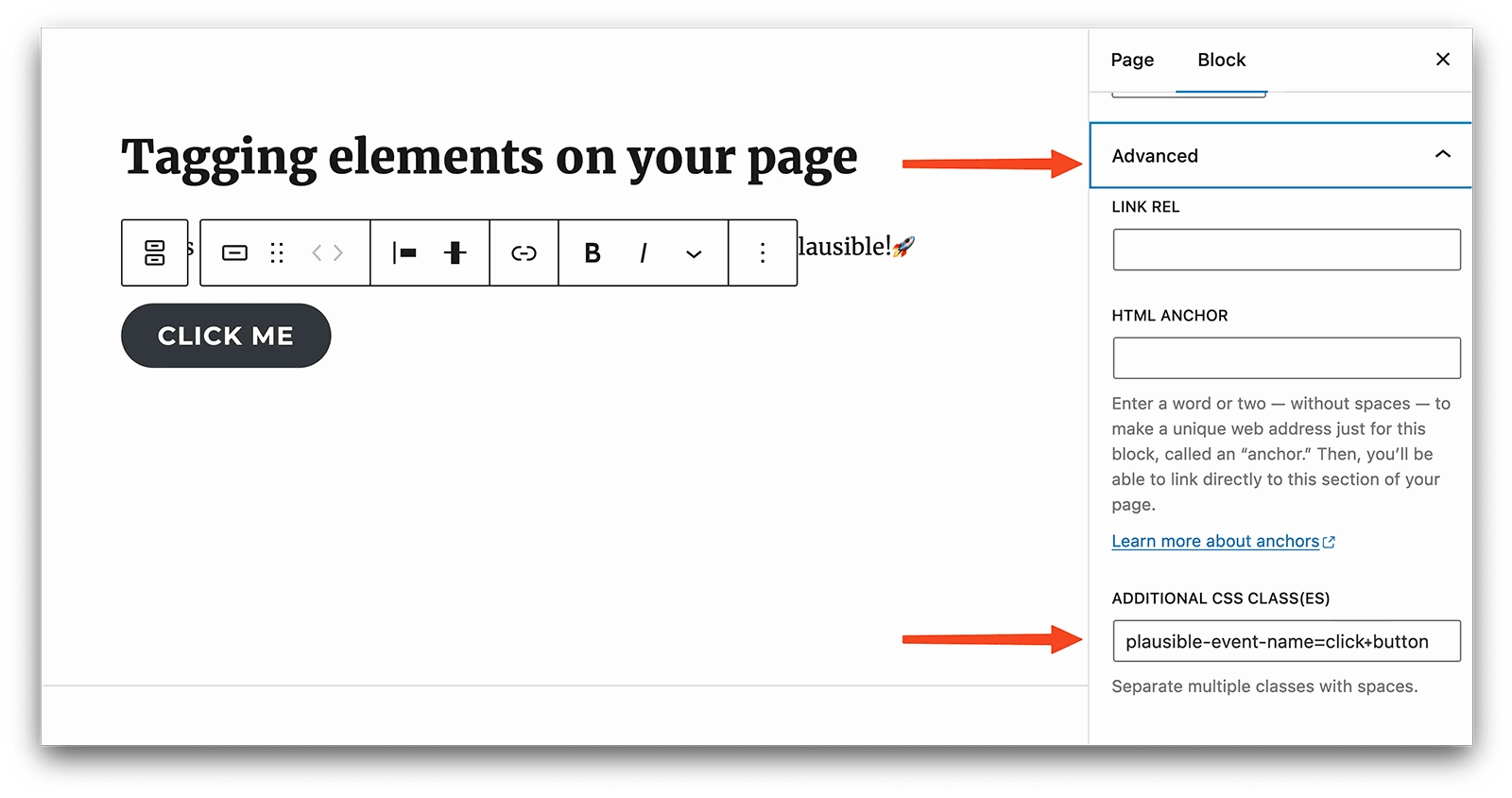
- Select the block you want to track to open the block menu.
- Under Advanced, add a class in the Additional CSS class(es) field using the format
plausible-event-name=YourEventName. For a signup button:plausible-event-name=Signup+Submit(a+becomes a space).
The event won't appear until you add a matching goal. In your site settings, open Goals, click + Add goal, choose Custom event and enter the event name (Signup Submit for the example above). See custom event goals for the full reference.
Send custom properties with events
Add custom properties to segment an event further. To record where a shared button was clicked, append plausible-event-position=footer to the class:
plausible-event-name=Signup+Submit plausible-event-position=footer
Properties show up automatically once the goal exists. See custom properties for more.
Track ecommerce revenue
The plugin has built-in support for WooCommerce and Easy Digital Downloads. Enable Ecommerce revenue in Enhanced measurements and the plugin automatically tracks these events:
- Add to Cart
- Remove from Cart
- Start Checkout
- Complete Purchase (including revenue)
- Visit
/product*
It also records product properties (product_name, product_cat, price, cart_total, quantity and more) and builds a purchase funnel from product view to completed purchase, so you can see where customers drop off. No code or custom event setup is required.
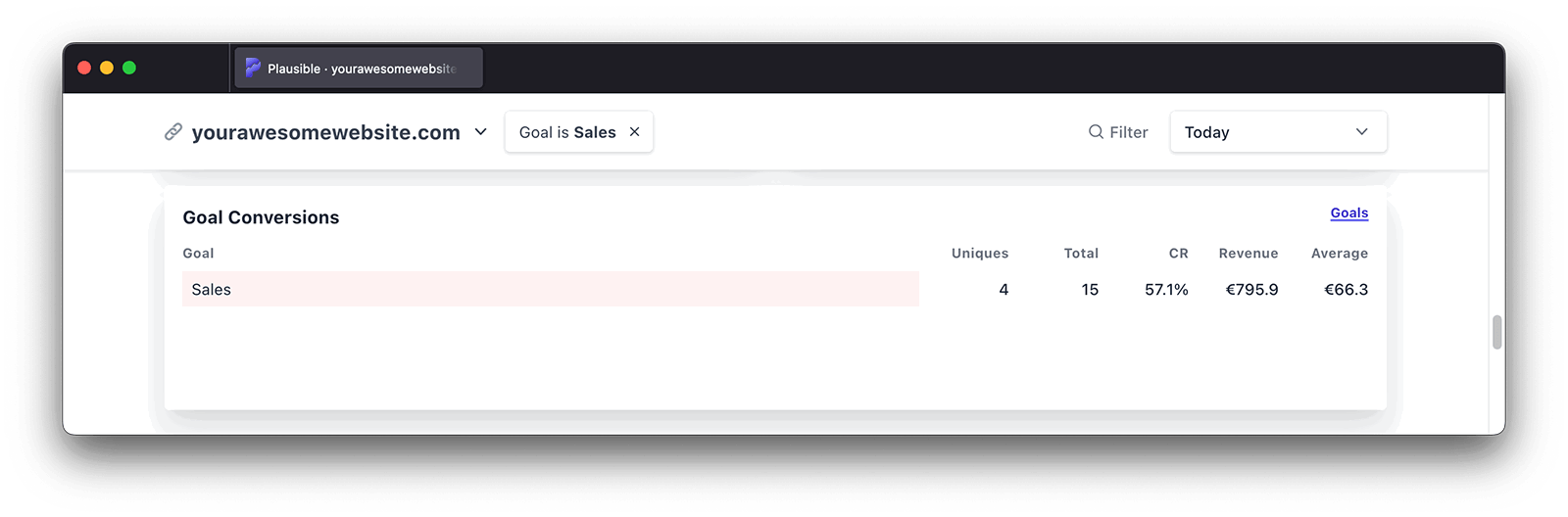
If your store doesn't run on WooCommerce or Easy Digital Downloads, you can send revenue manually. See ecommerce revenue tracking for the full reference.
View your stats inside WordPress
You can see your Plausible dashboard inside WordPress without visiting our website. Enable View stats in WordPress in the plugin settings, then open Dashboard → Analytics in the WordPress admin menu.
Stats are visible to administrators by default. Under Show stats dashboard to additional user roles, you can also grant access to editors, authors and contributors.
Exclude specific pages from tracking
In Exclude specific pages from being tracked, add a comma-separated list of page paths to leave out of your stats. Each entry must start with / and omit the trailing slash. Use * as a wildcard, for example /subdirectory-to-exclude* to exclude everything under a directory.
Exclude admins and other roles
By default the plugin excludes logged-in administrator visits so your own activity stays out of the stats. In Track analytics for user roles, you can also exclude editors, authors and contributors, or enable any role you do want to count. See excluding visitors for other ways to filter internal traffic.
Disable the toolbar menu
By default the plugin adds a shortcut to the WordPress toolbar so you can jump to analytics for the page you're viewing. Toggle it off in the settings if you prefer a cleaner toolbar.
Bypass adblockers with the proxy
Plausible's script is blocked far less than Google Analytics, but some blocklists block every analytics script regardless of privacy practices. The proxy serves our script as a first-party request from your own domain so you keep complete data.
In the Bypass adblockers section, turn on Enable proxy. If you use a caching plugin, clear its cache afterward.
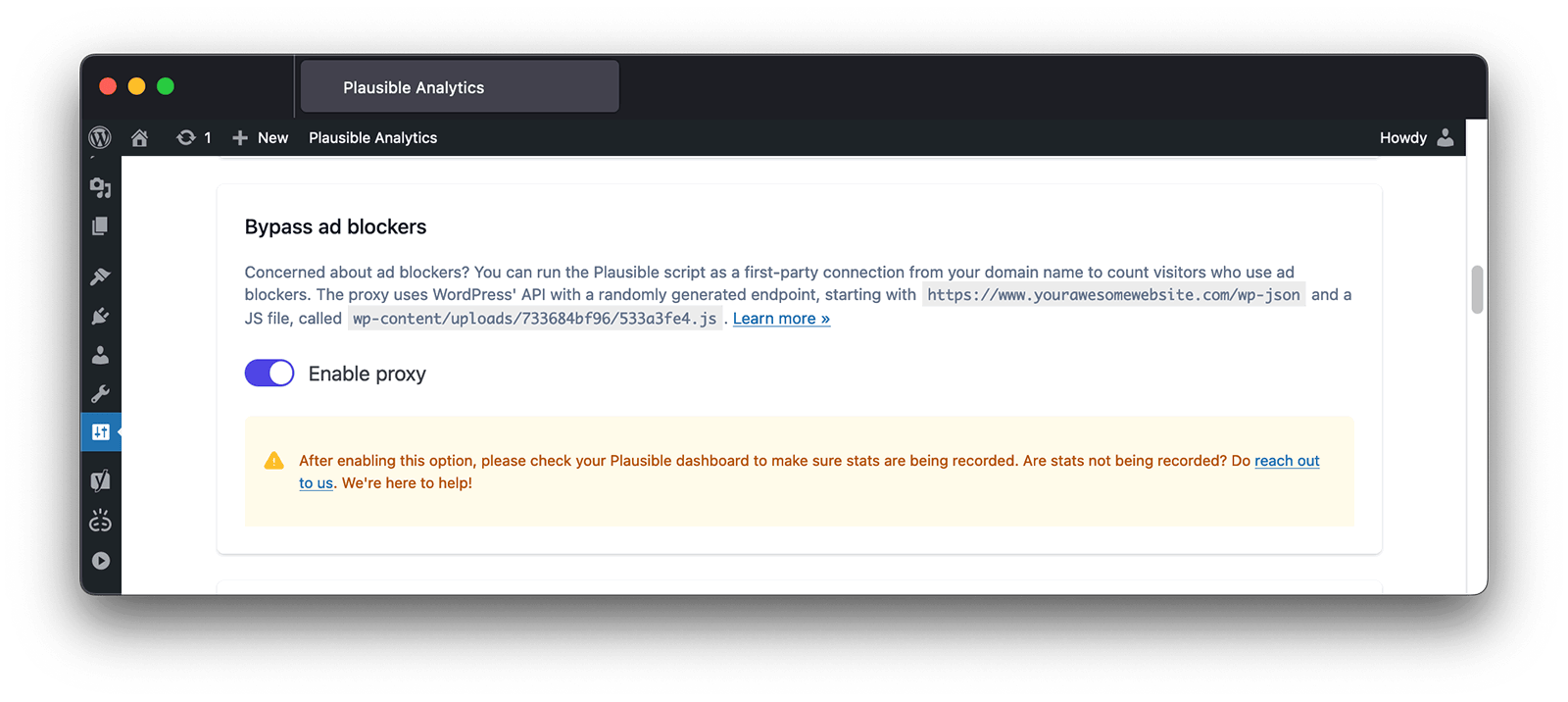
The proxy uses WordPress' API with a randomly generated endpoint under yourdomain.com/wp-json and creates a randomly named file in /wp-content/uploads/. If stats stop after enabling the proxy or after a site migration, see WordPress plugin issues.
Troubleshooting
Most plugin problems come down to caching, admin exclusion, an invalid token or a proxy reset. For step-by-step fixes, see WordPress plugin issues.
What's next?
- Set up goals to measure signups, purchases or any other key action
- Import your Google Analytics history to keep your stats continuous if you're switching from GA
- Connect Data Studio for custom reporting across your data sources